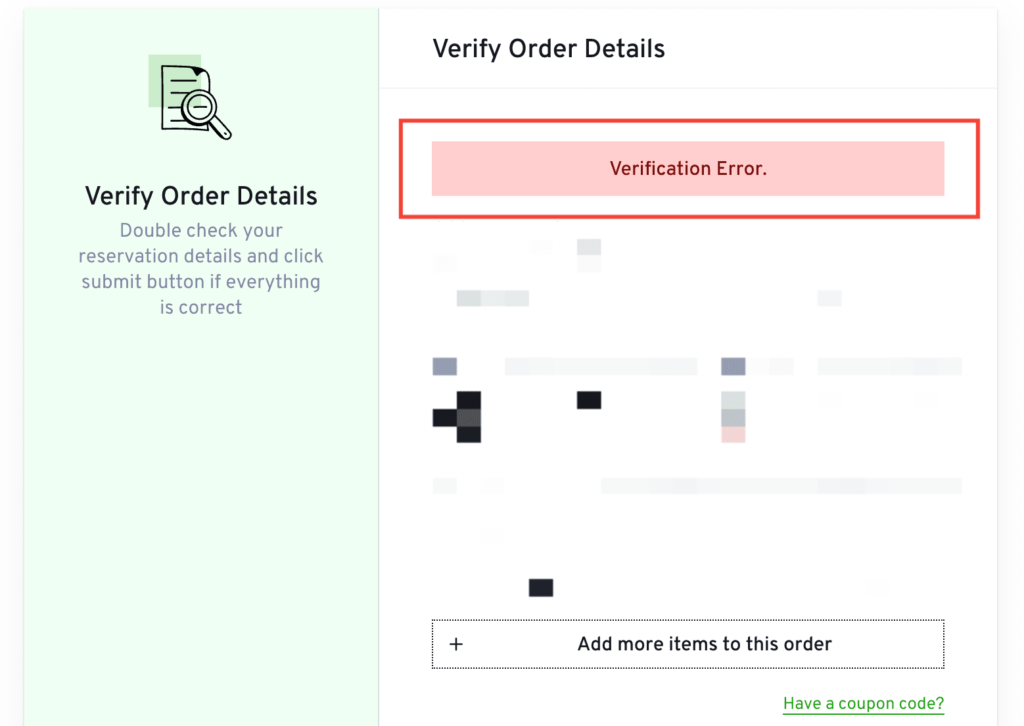
The “Verification Error.” message on the verification step of the LatePoint booking form, it is usually caused by an incomplete Cloudflare Turnstile CAPTCHA setup.
This issue occurs when the option “Enable Cloudflare Turnstile CAPTCHA” is enabled inside LatePoint → Settings → Security & Spam, but the required Turnstile Site Key and Turnstile Secret Key fields are left empty.
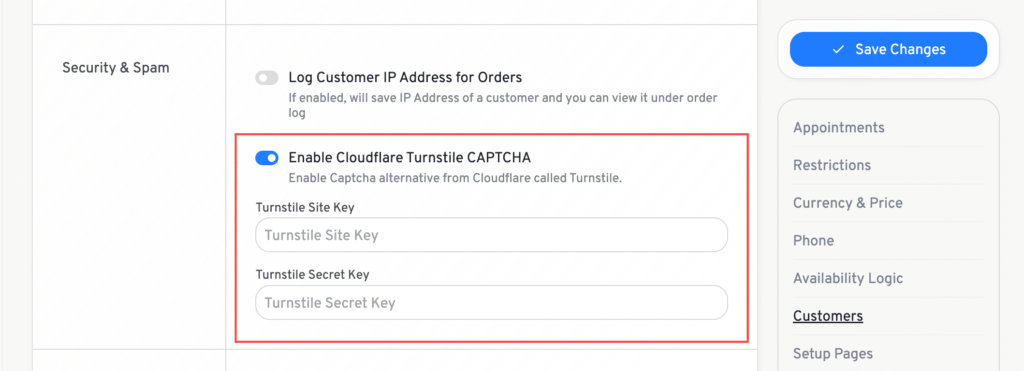
When CAPTCHA is enabled without valid API keys, LatePoint cannot validate the verification request. As a result, the system shows the Verification Error message to the customer.
How to Fix the Issue:
You can resolve this issue using one of the two methods below:
Option 1: Add Your Turnstile API Keys (Recommended)
Generate your Site Key and Secret Key from Cloudflare and enter them in: LatePoint → Settings → Security & Spam.
Follow this guide to generate your keys: https://developers.cloudflare.com/turnstile/get-started/
Once the keys are added, save the settings and refresh your booking form.
Option 2: Disable the Turnstile CAPTCHA
If you do not want to use CAPTCHA, simply disable the option:
LatePoint → Settings → Security & Spam → Enable Cloudflare Turnstile CAPTCHA
Disabling it removes the verification step and the error will no longer appear.